This document describes the steps to quickly deploy YMatrix on a single node.
Note!
To deploy a multi-node cluster, refer to the Standard Cluster Deployment section.
Note!
Quick installation is only supported on operating systems such as CentOS 7 and RedHat 7. For Ubuntu 20.04 deployment instructions, click here. For CentOS 8 and RedHat 8 deployment instructions, click here.
Note!
For instructional videos, see YMatrix Installation and Deployment. If the host cannot access the Internet, refer to Offline Cluster Deployment.
Server installation consists of two parts: preparation and database deployment. Optional post-installation configurations and basic database management commands are also covered.
Copy the RPM package from your local machine to the remote server:
~ scp <local_path> <username>@<server_ip>:<server_path>
Note!
From this step onward, all operations must be performed as the root user or with sudo privileges.
YMatrix requires Python 3.6. Install it and set it as the default version using the following commands:
$ sudo yum install centos-release-scl $ sudo yum install rh-python36 $ sudo scl enable rh-python36 bash
Disable the firewall:
$ sudo systemctl stop firewalld.service $ sudo systemctl disable firewalld.service
Disable SELinux. Edit /etc/selinux/config and set the value of SELINUX to disabled:
$ sudo sed s/^SELINUX=.*$/SELINUX=disabled/ -i /etc/selinux/config $ sudo setenforce 0
Ensure the installation node has a persistent hostname. If not, set it using the command below (example sets hostname to mdw):
$ sudo hostnamectl set-hostname mdw
Edit the /etc/hosts file. If using vim for the first time, install it with the sudo yum install vim command:
$ sudo vim /etc/hosts
Map the hostname to a local network interface address. After editing, press Esc, then type :wq to save and exit:
192.168.100.10 mdw
Note!
Do not duplicate the<IP address> <hostname>entry in/etc/hosts. Doing so may cause a "host network connectivity test failed" error during GUI initialization.
Install the database RPM package using the yum command as root or with sudo privileges. System dependencies will be installed automatically. By default, YMatrix installs to the /opt/ymatrix/matrixdb5 directory:
$ sudo yum install matrixdb5-5.1.0+enterprise_5.1.0-1.el7.x86_64.rpm
Note!
In actual installation, replace the filename with the latest downloaded RPM package name.
Upon successful installation, supervisord and MXUI processes start automatically. These background services provide the graphical interface and process management.
If you need to configure ports, modify the /etc/matrixdb5/defaults.conf file after installing the RPM. This configuration is required only on the master node (Master).
$ vim /etc/matrixdb5/defaults.conf
YMatrix provides an easy-to-use deployment method via GUI or command line. Graphical deployment is recommended. Remote GUI deployment requires access to ports 8240 and 4617 on the server. The GUI service is provided by the MXUI process.
Access the web-based installation wizard using a browser. Replace <IP> with the Master server IP:
http://<IP>:8240/On the first page of the installation wizard, enter the superuser password. You can view it using the sudo more /etc/matrixdb5/auth.conf command:

The second page automatically selects "Single Node Deployment". Click Next:

Proceed with the following three steps for single-node deployment.
Step 1: Set the number of instances, storage path, and admin password. Click "Deploy Now" to proceed.

Step 2: Database deployment begins. The progress is displayed in real time.

Step 3: Deployment complete. Click "Finish".

YMatrix also supports one-click command-line deployment. Run the following commands. The database starts automatically after deployment and is ready for use:
source /opt/ymatrix/matrixdb5/greenplum_path.sh sudo env "PATH=$PATH" mxsetup
After deployment, the Cylinder process starts automatically. This process triggers scheduled tasks at specified intervals.
SSH into the server and switch to the YMatrix administrator user mxadmin:
$ sudo su - mxadmin
By default, YMatrix allows remote connections. If "Allow remote connection to database" was not selected during installation, manually add a line like the following to the $MASTER_DATA_DIRECTORY/pg_hba.conf file to allow any IP to connect to any database using password authentication. Adjust the IP range or database name as needed to reduce security risks:
$ host all all 0.0.0.0/0 md5
To facilitate remote access and verify successful initialization, set a password for the mxadmin user (replace mxpass with your desired password):
$ psql -c "alter role mxadmin with password 'mxpass'" -h localhost -p 5432 mxdb
After making these changes, reload the configuration using the following command:
pg_hba.conf
$ mxstop -u
``
SSH into the server and switch to the YMatrix administrator user mxadmin:
$ sudo su - mxadmin
Use the following commands to start, stop, restart, or check the status of YMatrix:
$ mxstart -a $ mxstop -af $ mxstop -arf $ mxstate -s
| Command | Purpose |
|---|---|
| mxstop -a | Stop the cluster. (Stops only after all active sessions end.) |
| mxstop -af | Forcefully stop the cluster immediately. |
| mxstop -ar | Restart the cluster. Waits for currently running SQL statements to finish. (Stops only after active sessions end.) |
| mxstate -s | Check cluster status. |
YMatrix can be installed on low-specification hardware. Minimum requirements are:
| Minimum Requirements |
|---|
| Dual-core 1GHz CPU |
| 2GB RAM |
| 2GB disk space |
| RAID 1 (mirroring) |
If installing on a device with less than 2GB RAM, create a swap space of at least 2GB before installation.
Create and enable a 2GB SWAP file: `` sudo dd if=/dev/zero of=/opt/swapfile count=2048 bs=1MiB sudo chmod 600 /opt/swapfile
sudo mkswap /opt/swapfile sudo swapon /opt/swapfile
swapon -s free -m ``
Add the following line to to make the swap persistent across reboots: `/etc/fstab` /opt/swapfile swap swap sw 0 0
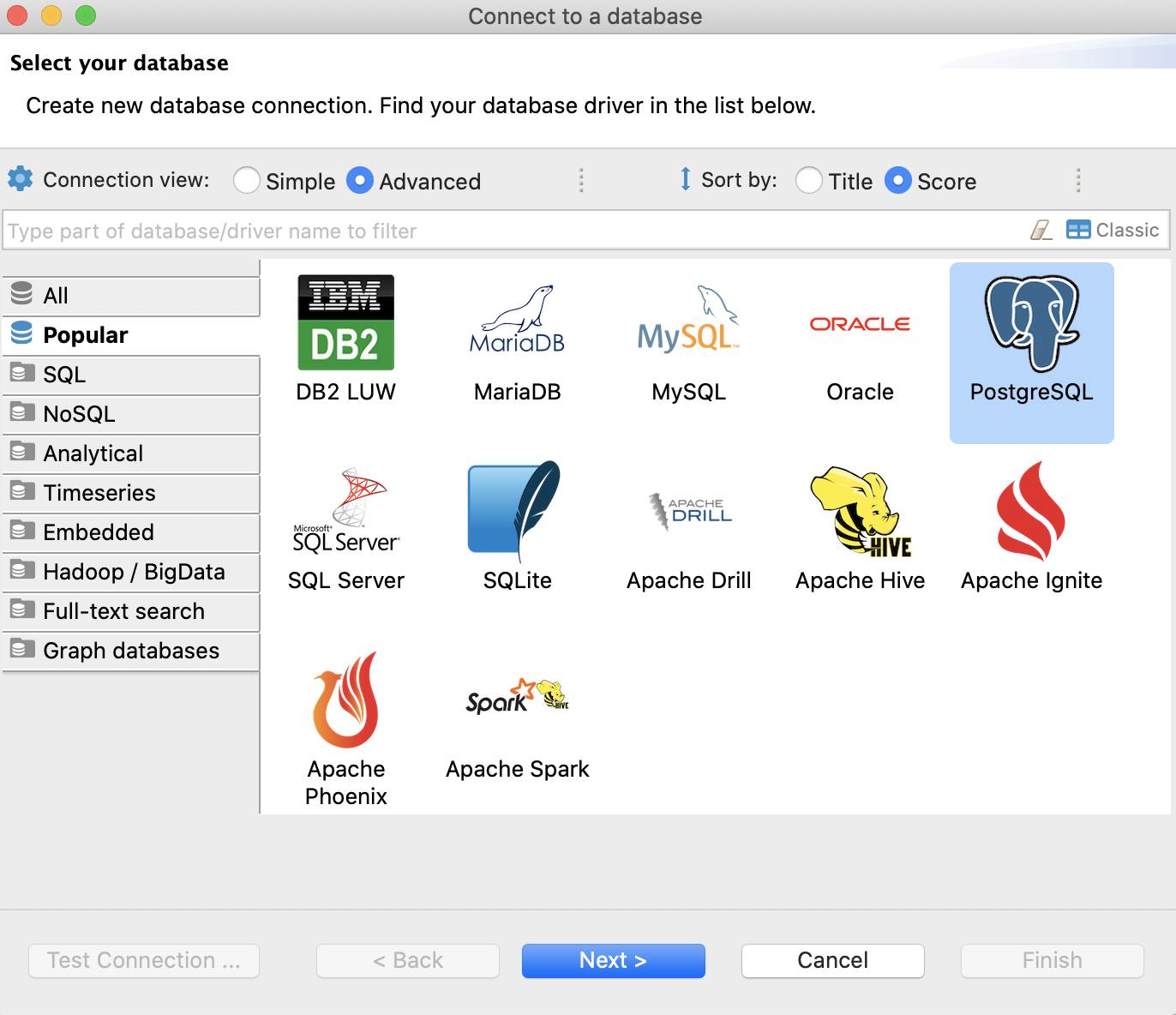
YMatrix is compatible with PostgreSQL 12 protocol. Many commercial and open-source PostgreSQL 12 client tools (such as DBeaver, pgAdmin, etc.) can be used with YMatrix. You can easily access YMatrix remotely from personal devices like laptops. See Client Connection for details.
The YMatrix command-line tool psql can also be used remotely on Windows or Mac systems. Mac users can install it directly using brew:
$ brew install libpq $ brew link --force libpq ail
Windows users, click here to download and install.
After installing psql, use to specify the hostname and `-h` to specify the port when connecting to the YMatrix server. Common `psql` parameters include: `-p` $ psql -h [hostname or IP] -p [port] -U [username] -W -d [database name]
Example:
$ psql -h 127.0.0.1 -p 5432 -U mxadmin -W -d mxdb
Enjoy your experience!


