YMatrix provides a native graphical monitoring tool based on Grafana. This document describes the steps to deploy and manage the monitoring components. YMatrix includes a default monitoring dashboard that displays the following information. Users can also create custom dashboards in Grafana using the collected system data.
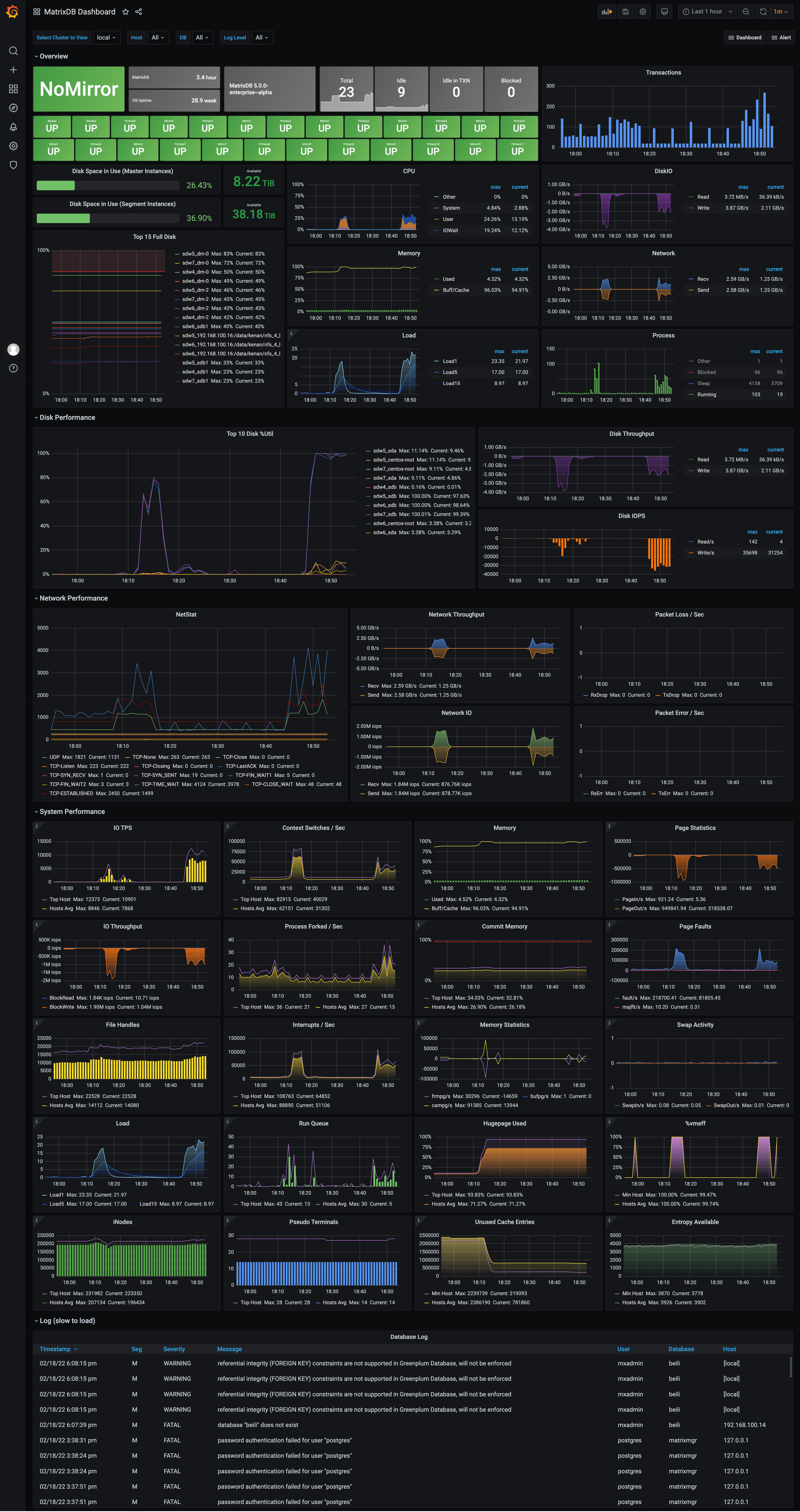
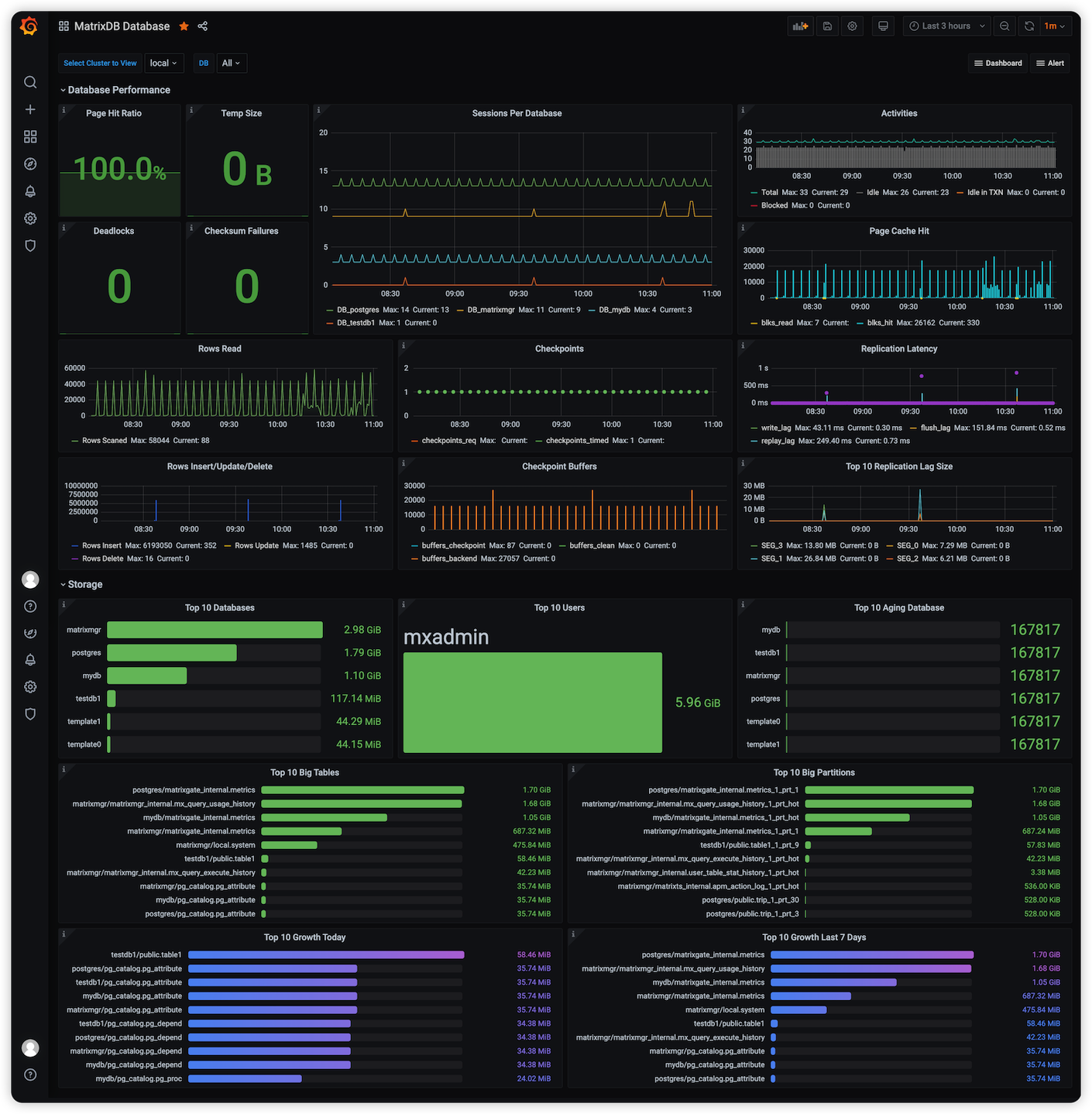
After deployment, the monitoring interface appears as shown below. Starting from version 4.4, the monitoring is split into two dashboards: MatrixDB Dashboard and MatrixDB Database.
MatrixDB Dashboard:
MatrixDB Database:
Monitoring components are included in the YMatrix installation package. After deploying YMatrix, complete the monitoring setup in two steps: enabling metric collection and installing/configuring Grafana.
Perform the following steps to enable metric collection for YMatrix and system resource usage. Collected data is stored in a newly created database named matrixmgr. In the examples below, the Master host is mdw.
[<普通用户>@mdw ~]$ sudo su - mxadmin[mxadmin@mdw ~]$ psql -d matrixmgr
matrixmgr=# SELECT mxmgr_init_local();Upon success, a new schema named local will appear in the matrixmgr database. Tables and views under this schema contain cluster monitoring and configuration data. Do not modify the definitions or contents of these tables and views manually.
Prepare a host that can access both the Master node and the internet. This can be the Master, Standby Master, or a separate machine (Linux, macOS, Windows, etc.).
Install Grafana, version 7.3 or later recommended. Official download and installation instructions are available at https://grafana.com/grafana/download.
The commands below use CentOS 7 as an example. For other operating systems, refer to their respective documentation.
Note!
YMatrix supports offline Grafana installation. See Monitoring and Alerting FAQ for details.
wget https://dl.grafana.com/oss/release/grafana-7.3.6-1.x86_64.rpm
sudo yum install grafana-7.3.6-1.x86_64.rpm[mxadmin@mdw ~]$ sudo systemctl daemon-reload
[mxadmin@mdw ~]$ sudo systemctl start grafana-server
[mxadmin@mdw ~]$ sudo systemctl status grafana-server
[mxadmin@mdw ~]$ sudo systemctl enable grafana-serverNote!
- The Grafana version provided by
yumin CentOS 7 is often outdated (6.x), so direct installation viasudo yum install grafanais not recommended.- For full official installation instructions, see https://grafana.com/docs/grafana/latest/installation/rpm
After installation, open a browser and navigate to the URL below. Port 3000 is the default Grafana port and can be changed. Log in using the default credentials (admin / admin). For security, change the password after logging in by clicking the user avatar in the lower-left corner.
http://<IP_or_domain_of_installed_node>:3000After Grafana is installed, add the matrixmgr database in YMatrix as a data source and import the predefined monitoring dashboards.
Steps to add a data source:
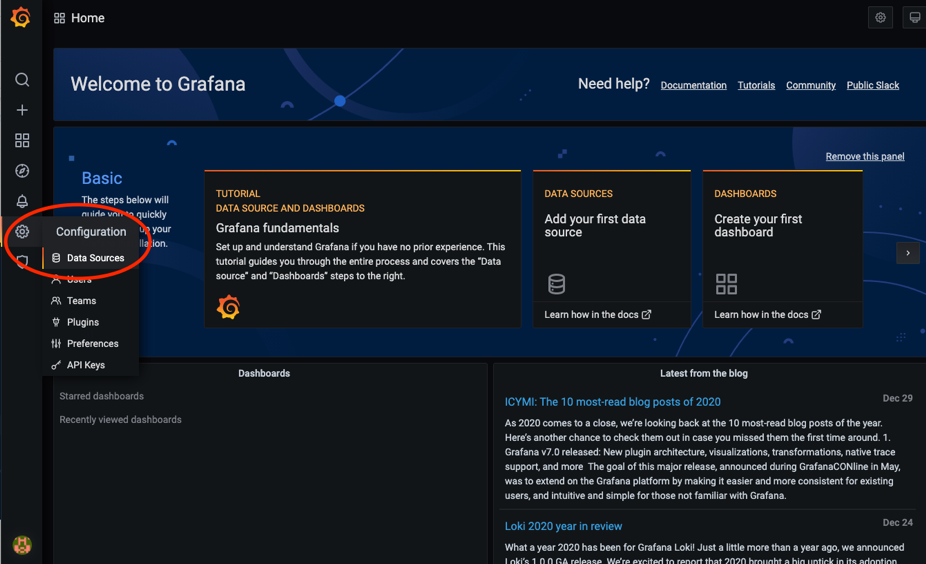


Before importing the predefined dashboards, copy the dashboard.json and database.json files to your local machine. Locate the files on the server, copy them, and then upload them locally. Follow these steps:
First, log in to the server and switch to the mxadmin user. Navigate to the path shown in the image or use the find command to locate dashboard.json and database.json. Below is an example using find for database.json.
[mxadmin@mdw ~]$ cd /opt/ymatrix/matrixdb5/share/doc/postgresql/extension

##or

[mxadmin@mdw ~]$ find /opt/ymatrix/matrixdb5/share/doc/postgresql/extension -name database.json
Next, use scp to copy the file to your local machine. Permission issues may arise; consider copying the file to /tmp/ first, then transferring it from there. Example using database.json:
Note!
When copying from/tmp/, ensure you switch users appropriately to avoid permission issues.
[mxadmin@mdw]$ scp mxadmin@<server_IP>:/opt/ymatrix/matrixdb5/share/doc/postgresql/extension/"database.json" mxadmin@<server_IP>:/tmp/

~ scp waq@<server_IP>:/tmp/"database.json" /Users/akkepler/workplace/Grafana
Verify the file has been copied successfully by opening the local directory or checking via command line. Once confirmed, upload the files in the Grafana UI.
Note!
If import fails, perform the variable replacement steps below.
In dashboard.json, replace all instances of ${cluster} with local. Replace $host with the actual hostnames. For example, if your cluster consists of mdw, sdw1, and sdw2, update all $host references to 'mdw','sdw1','sdw2'. For database.json, only replace ${cluster} with local. After modification, import the JSON files in Grafana.

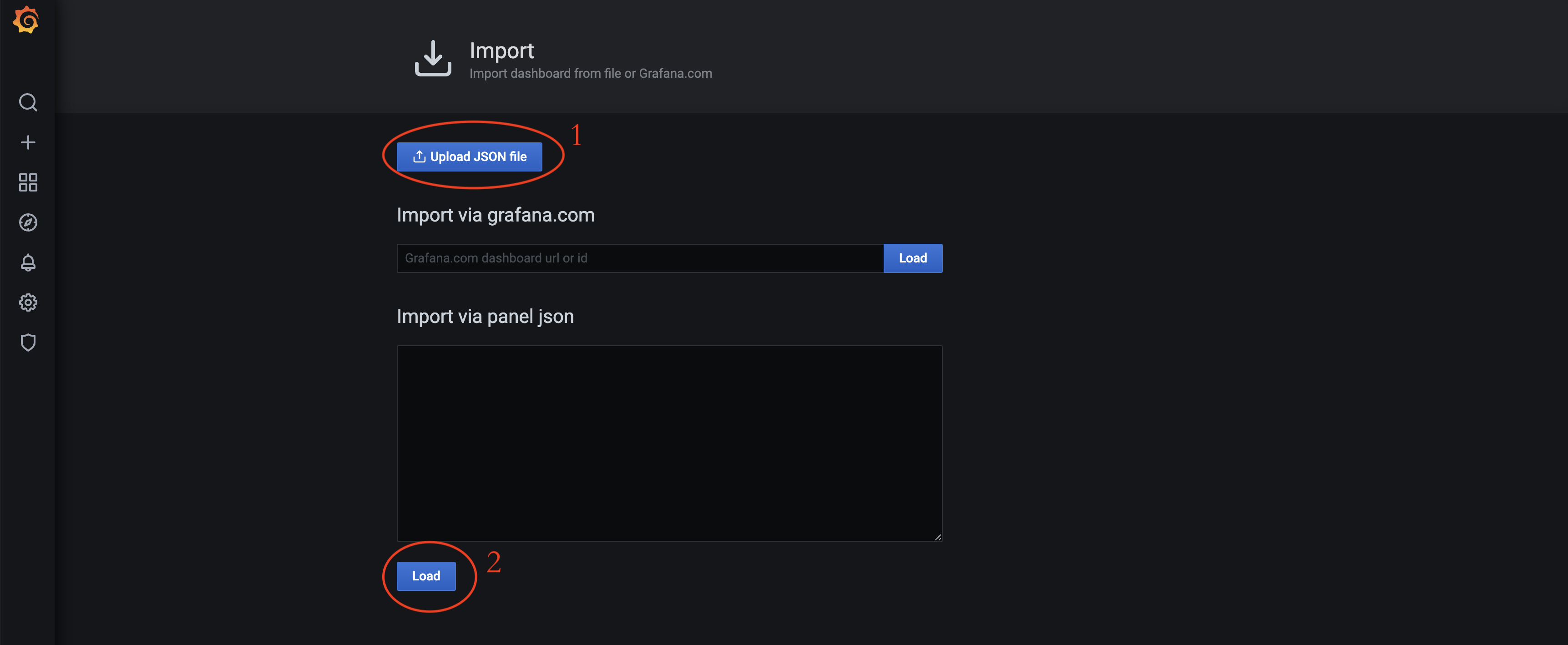
Click Upload JSON file to select and import dashboard.json and database.json. These files are located by default in /opt/ymatrix/matrixdb5/share/en/doc/postgresql/extension.

After enabling cluster metric collection, each host runs a collection service. Related logs are stored in /var/log/matrixdb.
If YMatrix is restarted, or if the server is rebooted and YMatrix restarted afterward, the data collection service starts automatically without manual intervention.
To stop the data collection service, connect to the matrixmgr database and run mxmgr_remove_all. Existing collected data remains preserved:
[mxadmin@mdw ~]$ psql -d matrixmgr

matrixmgr=# SELECT mxmgr_remove_all('local');
If the collection service was manually stopped or YMatrix was reinstalled, reactivate metric collection by connecting to matrixmgr and running mxmgr_deploy:
matrixmgr=# SELECT mxmgr_deploy('local');

