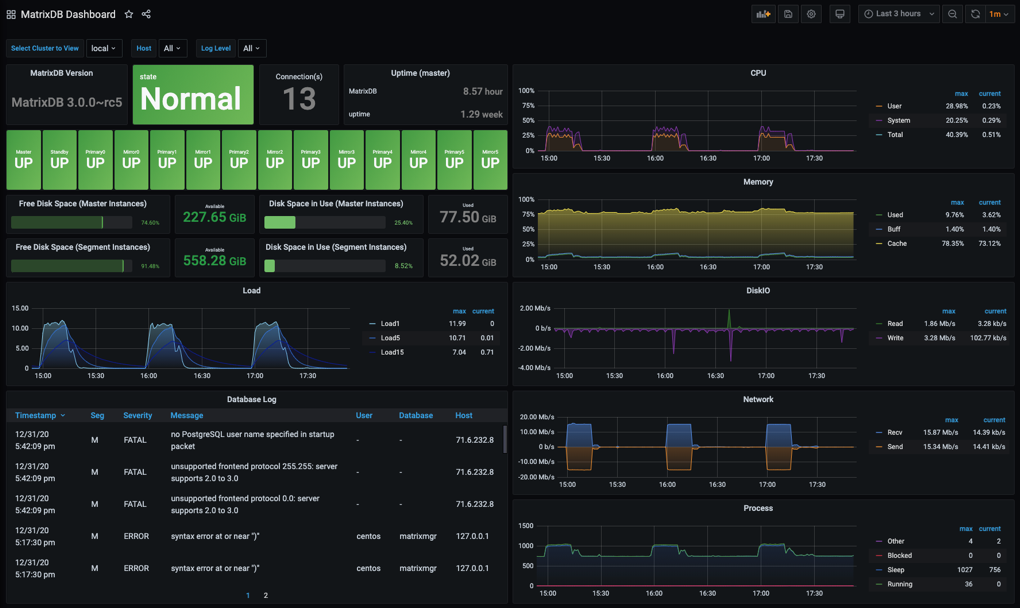
MatrixDB provides a native Grafana-based graphical monitoring tool. This document describes the steps to deploy and manage the monitoring components. MatrixDB includes a default monitoring dashboard that displays the following information. Users can also create custom dashboards in Grafana based on the collected system data.
The following image shows the default monitoring dashboard after deployment:
Monitoring components are included in the MatrixDB installation package. After deploying MatrixDB, complete the monitoring setup in two steps: enabling metric collection and installing/configuring Grafana.
Perform the following steps to enable metric collection for MatrixDB and system resource usage. Collected data is stored in a newly created database named matrixmgr.
createdb matrixmgr;psql -d matrixmgr
matrixmgr=# CREATE EXTENSION matrixts;
matrixmgr=# CREATE EXTENSION matrixmgr;
matrixmgr=# SELECT mxmgr_init_local();After successful execution, a new schema named local appears under the matrixmgr database. Tables and views within this schema contain cluster monitoring and configuration data. Do not modify the definitions or contents of these tables and views manually.
Prepare a host that can access both the MatrixDB Master node and the external network. This can be the Master, Standby Master, or a separate machine (Linux, macOS, Windows, etc.).
Install Grafana, version 7.3 or later is recommended. The official download page is https://grafana.com/grafana/download.
The commands below use CentOS 7 as an example. For other operating systems, refer to their respective documentation.
Note!
YMatrix supports offline installation of Grafana. For details, see 6 Monitoring - FAQ 1
wget https://dl.grafana.com/oss/release/grafana-7.3.6-1.x86_64.rpm
sudo yum install grafana-7.3.6-1.x86_64.rpmsudo systemctl daemon-reload
sudo systemctl start grafana-server
sudo systemctl status grafana-server
sudo systemctl enable grafana-serverNotes:
yum in CentOS 7 is often outdated (version 6.x), so direct installation via sudo yum install grafana is not recommended. After installation, open the following URL in a browser to access the Grafana home page. Port 3000 is the default Grafana port and can be changed. Log in using the default credentials (admin/admin). For security, change the password after login by clicking the user icon in the lower-left corner.
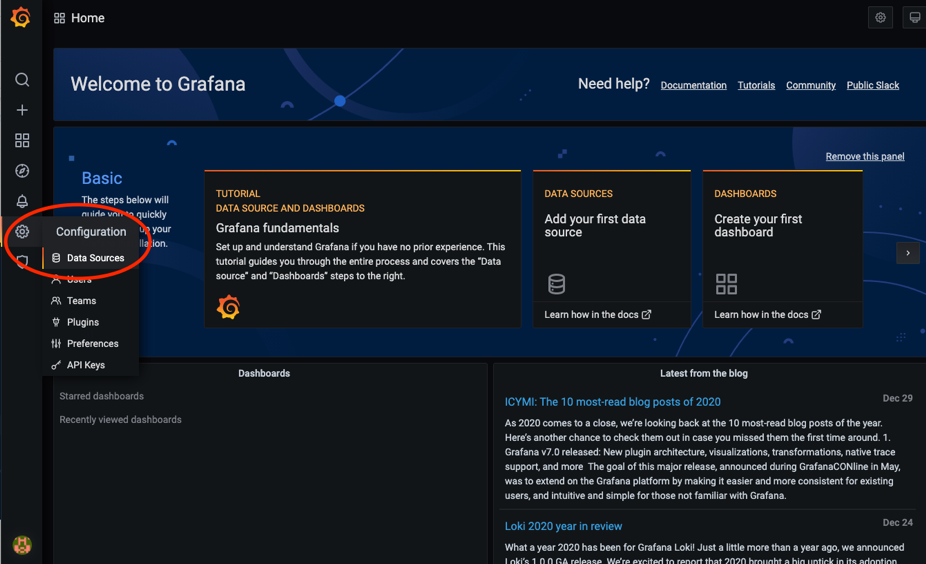
http://<IP_or_hostname_of_Grafana_host>:3000After Grafana is installed, add the matrixmgr database in MatrixDB as a data source and import the predefined monitoring dashboard.
Steps to add a data source:


Steps to import the dashboard:


After enabling cluster metric collection, each host runs a collection service. Related logs are stored in the /var/log/matrixdb directory.
If MatrixDB is restarted, or if the server is rebooted and MatrixDB is restarted afterward, the metric collection service starts automatically without manual intervention.
To stop the metric collection service, connect to the matrixmgr database and run the mxmgr_remove_all command. Existing collected data remains preserved:
psql -d matrixmgr

matrixmgr=# SELECT mxmgr_remove_all('local');
If the collection service is manually stopped or MatrixDB is reinstalled, re-enable metric collection by connecting to the matrixmgr database and running the mxmgr_deploy command:
matrixmgr=# SELECT mxmgr_deploy('local');

